Page
A page is the simplest content type. Use pages to talk about anything you want to promote, such as information about the store, site, and history, or to provide information about and host webforms.
Link to Pages from menus. Or from the Home Page with CTA blocks, sliders, image rows, and icon navigations.
Site Administrators and Content Editors can create, edit, and remove pages.
Pages DON'T have advanced elements like product lists, event carousels, and CTAs found on landing pages and the home page.
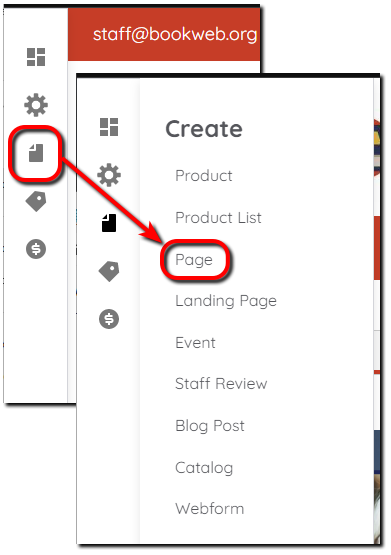
Select Create in the left menu, then select Page to create pages.
Create Page
All components and fields with a red asterisk (*) are required.
Title
Enter a Title that displays at the top of the page.
Body
Enter the page content in the Body using the text editor. If you’re attaching a Webform, this is where you’ll provide information about the Webform.
Attach Form
Add a pre-created Webform to collect information from visitors at the bottom of the page.
Attach Form Settings
Set Open, Closed, or Scheduled Status for this Webform instance.
Search, social & schema
Customize how the content on this page displays on social media or in search results by selecting Customize abstract in the upper right. Enter an Abstract that is a short summary of 160 characters max. This setting is optional.
URL alias
Use this setting to alter the URL of the page. Uncheck Generate automatic URL alias then enter the custom URL alias. External links cannot be used.
Published
Leave Published selected to publish the page to your site. Unselect if you don’t want the page to publish yet.
Save
Select Save to save changes made to the page.