Anchor Links
Anchor Links add the capability to link directly to distinct sections inside description fields for pages, landing pages, catalogs, events, staff reviews, and blog posts. This is ideal for lengthy policy documents and multi-section pages.
Create an Anchor Link
For this example, create anchor links to the different sections of the Shipping Policy page.
- Edit the Shipping Policy page.
- At the top of the Shipping Policy page, add names of the sections to link to (ie. Store Pickup, Domestic Shipping, etc.)
- Highlight the text Store Pickup that will serve as the anchor link.
- Select the flag icon on the WYSIWYG editor.
- Anchor name pop-up will appear. Enter the name of the anchor link, storepickup. This is the name you will reference when creating links that will lead to this anchor link.
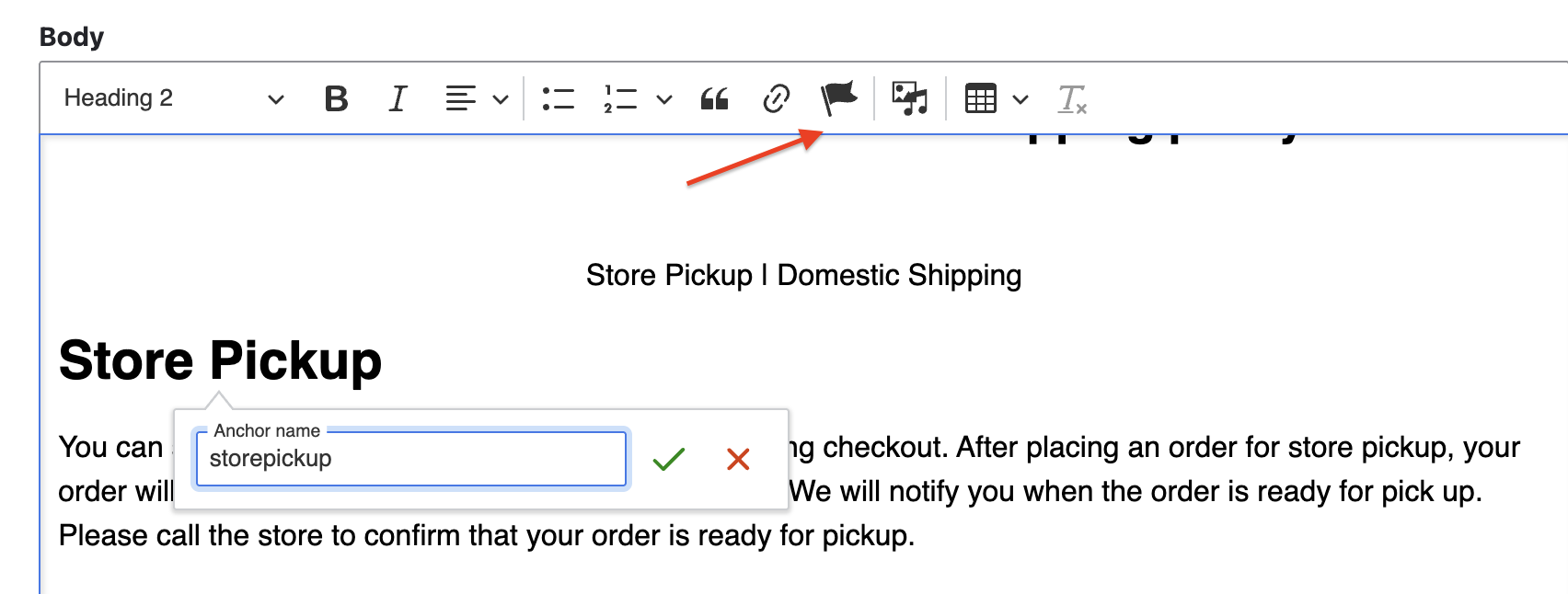
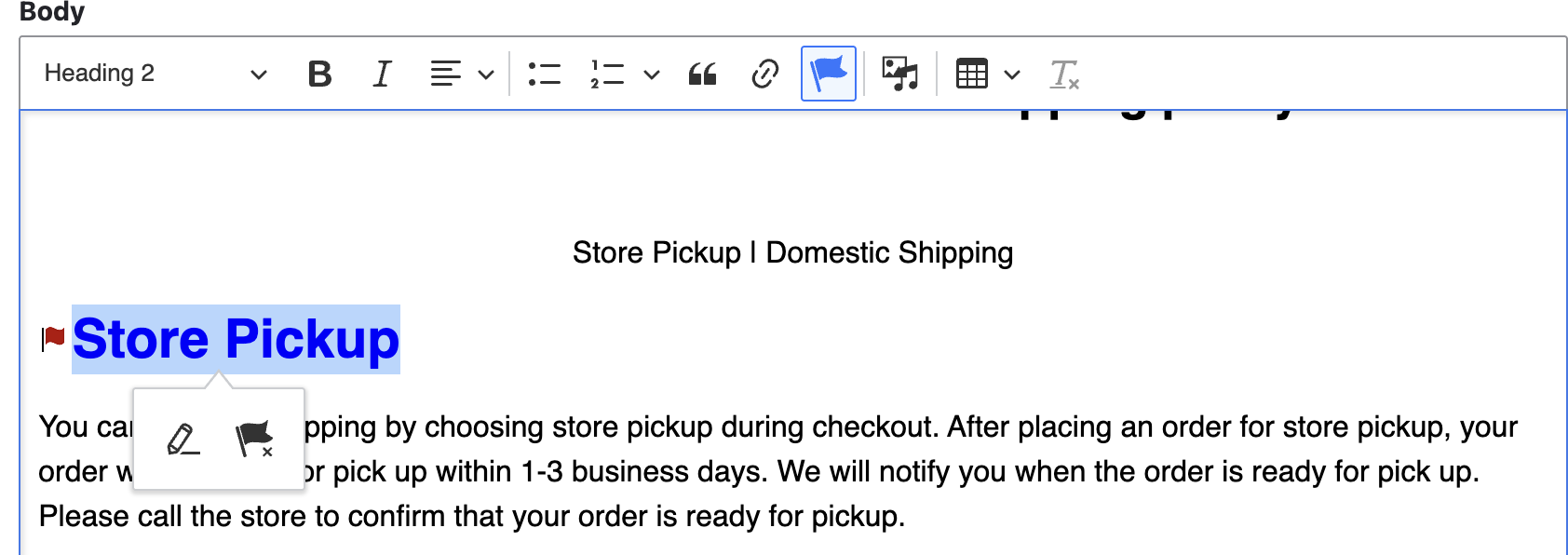
- Select the green check. A red flag will appear next to your anchor link. Your text should now be highlighted blue, indicating that it is linked.
- Highlight the text Store Pickup at the top of the page. This is the text selected to then lead to the anchor link. Select the link icon on the editor.
- Enter #storepickup for the Link URL. Select from the dropdown and click Insert.
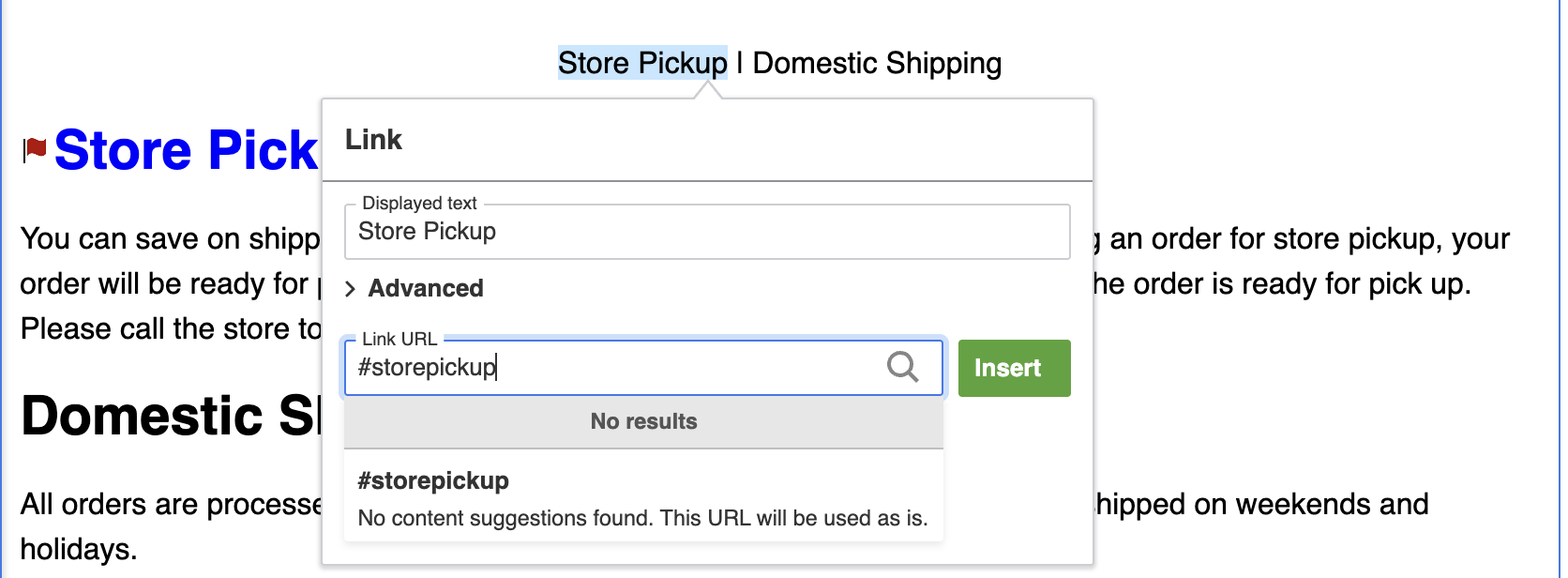
- The text will be highlighted in blue, indicating it is linked.
- Hit Save down at the bottom of the page.
- Repeat steps 2 - 10 for all the anchor links.
Edit or remove an Anchor Link
- Highlight the linked text in the content.
- To edit text, select the pencil icon
- To remove the link, select the flag with the X icon