Tax Exempt Customers
Tax-exempt customers like schools and libraries can apply for tax exemption for orders placed on your website by uploading their tax-exempt certificate to their account. You can approve or deny their tax-exempt status after verifying the certificate. Approved customers will be eligible for tax exemption on future orders if they log in to their account when placing the order.
Apply for Tax Exemption
Customers can apply for tax exemption by submitting their tax-exempt information in their account details. Once submitted, their tax-exempt information and status displays below their Email on the My Account page.
- Log into the website, select the My Account icon in the upper right, then select Edit Details.
- Expand Tax Exempt near the bottom.
- Enter a Tax Exempt ID #.
- Select Choose File in the File Upload section, navigate to the supporting document, then select Open.
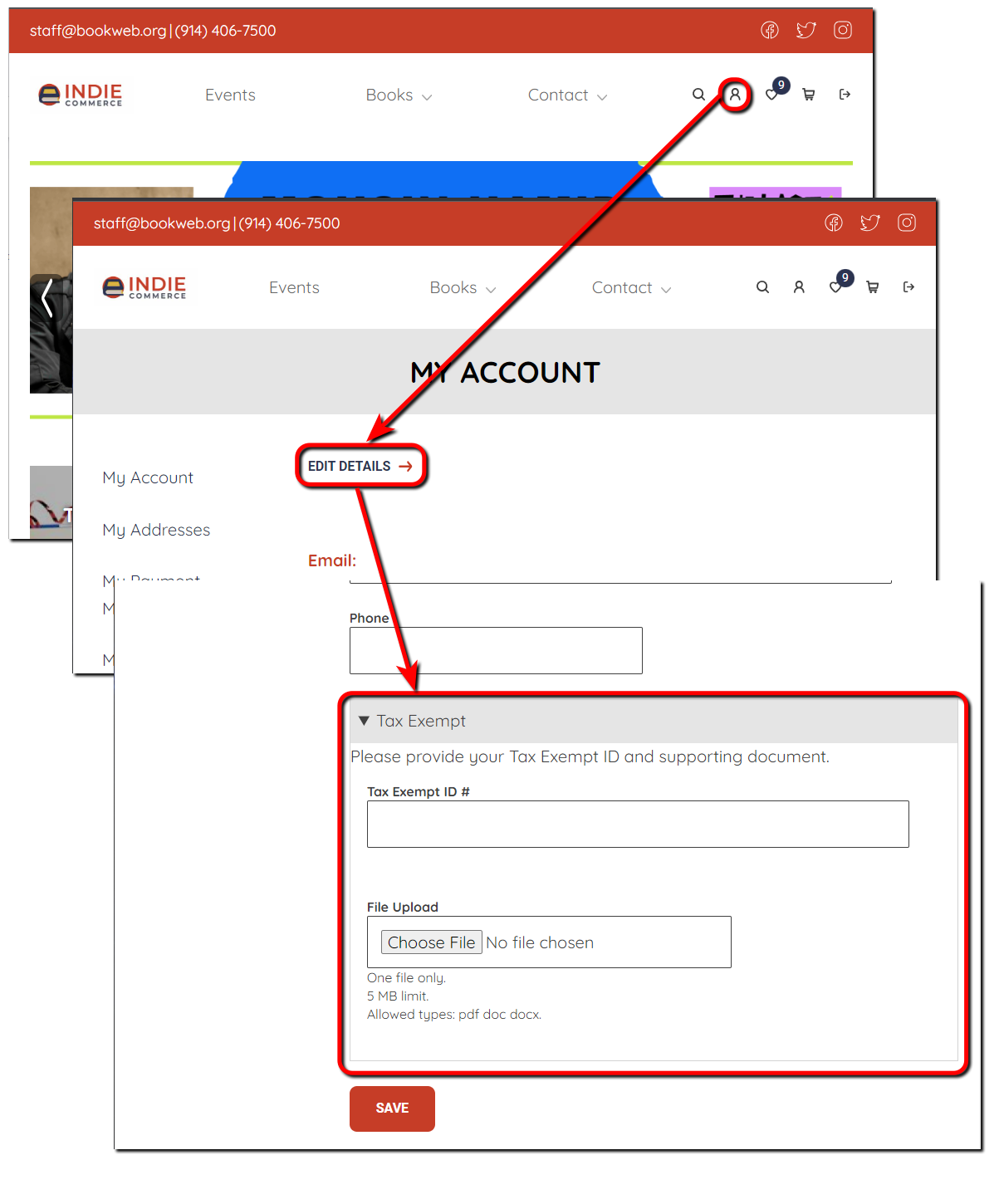
- Select Save to save the tax-exempt information.
Manage Tax-Exempt Customers
When customers apply for tax exemption, their application is placed in ‘Pending’ status until you verify and approve it. You can run a report to view and approve or reject pending applications. There are no other notifications, so we recommend you run this report frequently.
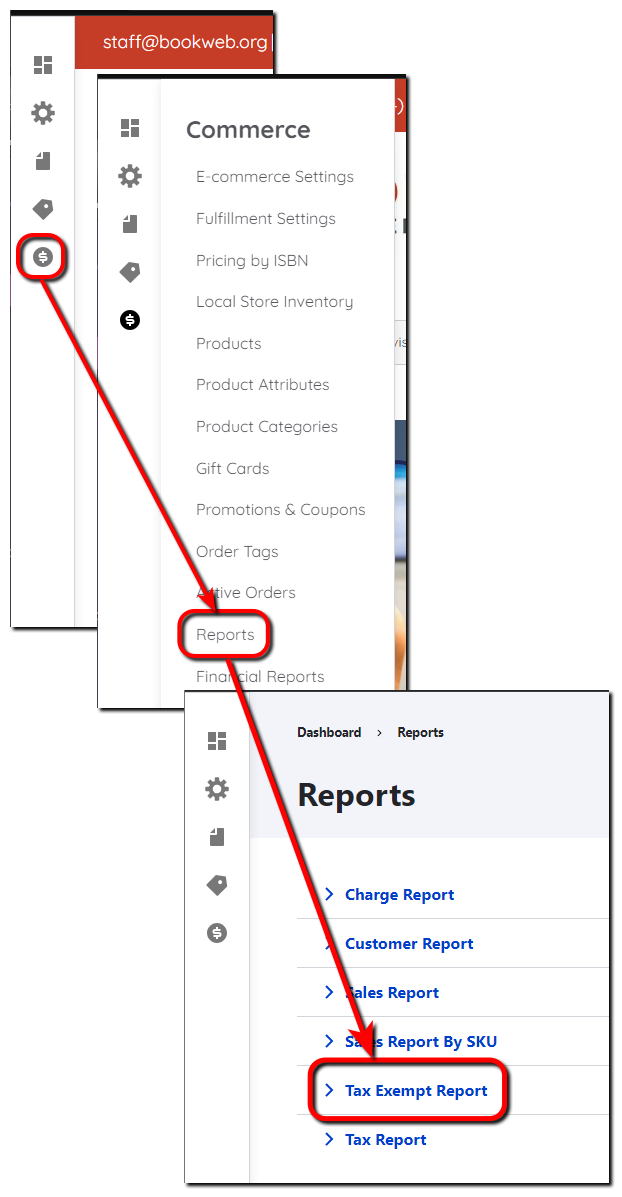
- Select Commerce in the left menu, select Reports, then select Tax Exempt Report to view all tax-exempt submissions.
- Select a file to view the supporting document.
- Select the checkbox next to a submission, select Update Tax Exempt status for the Action, then select Apply to selected items.
- Select the Tax Exempt status (Pending, Rejected, or Approved) to apply to the selected submission, then select Apply. The customer’s status updates on the report and in the customer’s account details.