Cart & Checkout Messages
These messages display during checkout, on the cart, checkout order information and the checkout review pages. Use conditions to determine when messages display. For example, configure a message that tells customers they get free shipping if their order is over $50 and a message that encourages them to order E-Gift Cards.
Adding a checkout message
For this example, add a checkout message that displays when a customer’s total is under $50 and a message about gift cards.
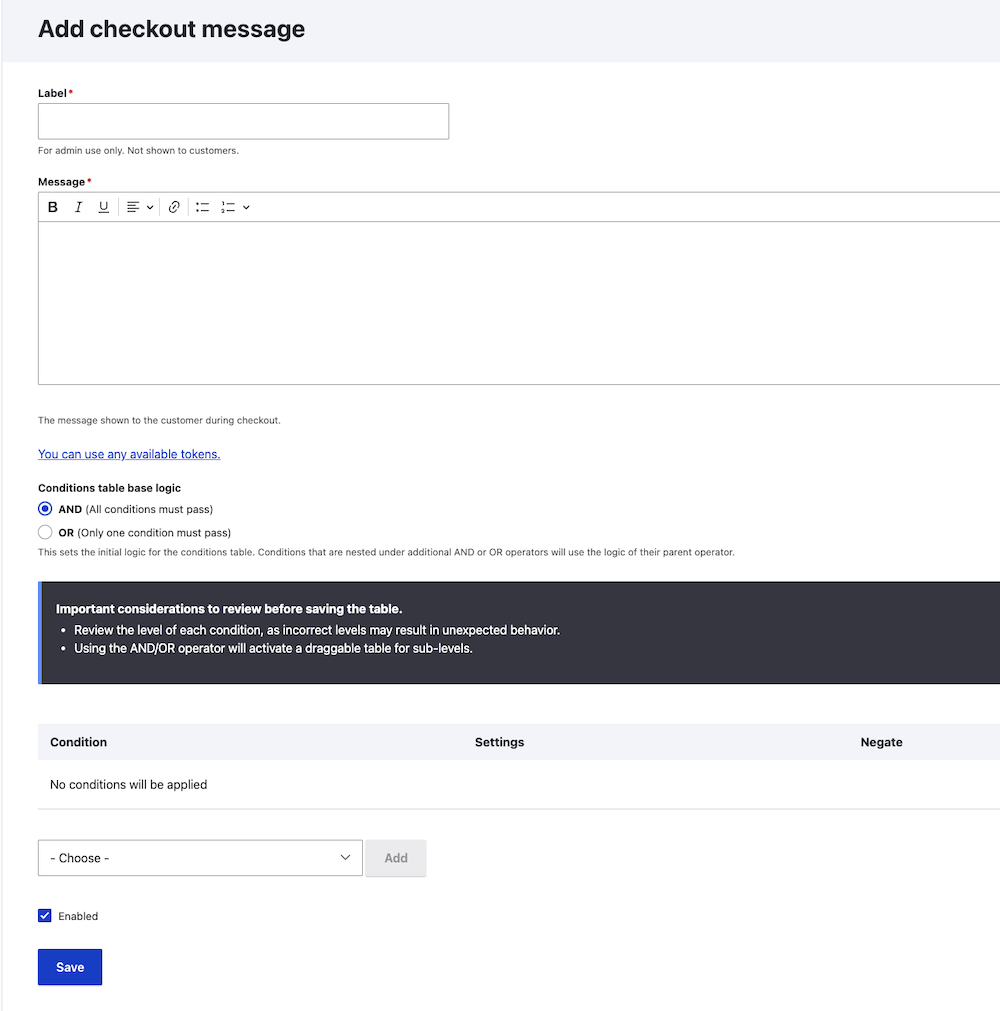
- Select Commerce in the left menu, then E-commerce Settings.
- Expand Checkout Messages, then select Manage checkout messages.
- Select + Add checkout message.
- Enter a Label that displays internally only. For this example, enter Free Shipping for orders over $50.
- Enter a Message that says: Orders over $50 are eligible for free shipping.
- Select Order Total for the first condition, then select Add.
- Select Less than for the Operator.
- Enter 50 for the Amount.
- Select Shipping address for the next condition, then select Add.
- Leave must be selected, along with United States.
- Scroll down and select Save.
- Select + Add checkout message to add the gift card message.
- Enter E-Gift Cards for the Label.
- Enter a Message that says: Looking for last-minute gift options? Try our E-Gift Cards! Use the link option to link to the E-Gift card product on your website.
- Select Product type for the Condition, then select Add.
- Start typing and select E-Gift Card for Product types, then check the Negate box. This ensures the message only displays if a customer doesn't have an E-Gift Card to their cart.
- Scroll down and select Save.